---
title: "How to Use Claude MCP for GBP Locations"
date: "2026-04-23"
canonical_id: claude-mcp-google-business-profile-locations
author: "Marija Azhderska"
category:
- google-business-profile
- gbp-api
tags:
- "claude-mcp"
- "google-business-profile"
- "multi-location"
- "ai-reporting"
- "agency-workflows"
summary: "Connect Localith to Claude with MCP, analyze multiple Google Business Profile locations, and use prompts for reports, reviews, and action plans."
draft: false
template: "blog"
image: "blog/claude-mcp-google-business-profile-locations/gbp-management-claude-mcp-localith.jpg"
faq:
-
question: "Can Claude manage multiple Google Business Profile locations?"
answer: "Claude can analyze and summarize multiple Google Business Profile locations when those locations are connected to Localith and available through the MCP connector. It does not edit the profiles through this connector."
-
question: "Is the Localith Claude MCP connector read-only?"
answer: "Yes. The Localith Claude MCP connector is read-only. Claude can retrieve approved location, metric, review metric, review, and API documentation data, but it cannot modify listings, reply to reviews, or change settings."
-
question: "What Localith data can Claude access?"
answer: "Claude can access the data exposed by the Localith connector tools: connected GBP locations, listing details, performance metrics, review metrics, individual reviews, and API documentation context."
-
question: "Can Claude create custom GBP reports?"
answer: "Yes. Claude can draft custom Google Business Profile reports from Localith data when you provide the reporting period, location group, audience, and desired format. For source files or shareable report exports, use Localith report exports."
-
question: "Can Claude reply to Google reviews through Localith MCP?"
answer: "No. Claude cannot reply to Google reviews through the Localith MCP connector. Use Localith's review workflows and AI Review Reply Agent for response work."
-
question: "Can I use the same prompts in ChatGPT?"
answer: "You can adapt the same prompts in ChatGPT if your plan and workspace support the right connector setup. ChatGPT custom MCP access can depend on developer mode, plan, workspace permissions, and connector availability."
-
question: "Do I still need Localith if I use Claude?"
answer: "Yes. Localith is the data and operations layer. Claude is the analysis and writing layer. Use Localith to connect locations, manage profiles, review performance, export reports, and act on findings."
seo:
title: "How to Use Claude MCP for GBP Locations"
description: "Connect Localith to Claude with MCP, manage multiple Google Business Profile locations, and use prompts for reports, reviews, and action plans."
og_image: "blog/claude-mcp-google-business-profile-locations/gbp-management-claude-mcp-localith.jpg"
structured_data: "article"
---
Managing multiple Google Business Profile locations gets messy when every answer needs another export, screenshot, or manual check. One client asks which stores lost calls. Another wants a monthly report. A regional manager wants to know which locations have review problems. With the Localith [Claude MCP connector](/docs/integrations/claude-mcp-setup/), Claude can ask Localith for approved location, metric, and review data so you can analyze multiple profiles without pasting spreadsheets into every chat.
This guide shows the practical workflow: how to connect Localith to Claude, what to check first, which prompts to use, what Claude can return, and where to act inside Localith after you find an issue.
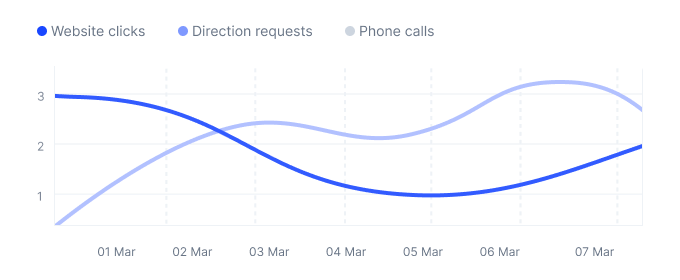
Localith is the data layer Claude reads from. Connect your Google Business Profile locations to Localith first, then ask Claude for summaries, reports, and action plans across every location.
Start free trial
## What This Claude MCP Workflow Lets You Do
Think of Localith as the Google Business Profile data layer and Claude as the analysis workspace.
Localith keeps your connected locations, reviews, performance metrics, and reporting workflows in one system. Claude uses the read-only MCP connector to ask for the data it needs, then helps you turn that data into summaries, reports, tables, and action plans.
You can use this workflow to:
- list all Google Business Profile locations Claude can access
- compare performance across multiple locations
- find locations with weak calls, clicks, or direction requests
- create client-ready monthly GBP reports
- scan reviews for rating drops, unanswered reviews, and repeated negative themes
- prepare for client meetings
- build a 30-day action plan for weak locations
- ask follow-up questions before making assumptions
The read-only part matters. Claude can analyze approved Localith data through the connector, but it cannot edit listings, reply to reviews, change hours, update categories, upload photos, or change profile settings. That boundary makes it useful for reporting and planning without giving an AI assistant control over live Google Business Profiles.

## Before You Start
Before connecting Localith to Claude, make sure you have the right account access and a clear first use case.
You need:
- an active paid Localith account
- at least one connected Google Business Profile location in Localith
- a Claude plan that supports connectors according to your account settings
- permission to access the client or location data you want to analyze
- a reporting period, client group, or location group to test with
Localith's current Claude connector docs list Claude Pro, Max, Team, or Enterprise as required for this workflow. Anthropic's broader remote MCP documentation notes that custom connectors are in beta and may vary by plan or interface, so check your current Claude settings before connecting.
## Step 1: Connect Localith to Claude
You can connect Localith to Claude in two ways: from the Claude connector directory, or as a custom connector.
Anthropic's documentation for [remote MCP connectors](https://support.anthropic.com/en/articles/11175166-getting-started-with-custom-integrations-using-remote-mcp) explains that Claude connects to remote MCP servers from Anthropic's cloud infrastructure. That means the connector runs through a remote server URL, not a local file on your computer. Use trusted connectors only, and disconnect them from Claude settings if access should be revoked.
### Option 1: Connect from the Claude directory (coming soon)
Use this path if Localith appears in Claude's connector directory.
1. Go to `claude.ai/settings/connectors`.
2. Search for `Localith`.
3. Click **Connect**.
4. Sign in with your Localith account.
5. Review and approve the requested permissions.
6. Return to Claude and confirm Localith appears in your active connectors.
### Option 2: Add Localith as a custom connector
Use this path if Localith does not appear in the directory or you need to connect it manually.
- Go to
claude.ai/settings/connectors.
- Click Add custom connector.

- Enter these fields:
| Field | Value |
|---|---|
| Server name | `Localith` |
| Server URL | `https://embedsocial.com/app/api/mcp` |
| OAuth client ID | `claude-mcp` |

- Click Save.
- Complete the OAuth sign-in flow.
- Review and approve the requested permissions.
Because connectors and remote MCP support are still changing across AI platforms, use the Localith docs as the source for Localith-specific fields and Anthropic's official [connector documentation](https://support.anthropic.com/en/articles/11176164-pre-built-integrations-using-remote-mcp) for the current Claude connector interface.
## Step 2: Confirm Claude Can See Your Localith Tools
Once Localith is connected, start with a low-risk test. Do not ask Claude to write a report yet. First, confirm that it can see your connected locations.
Use this prompt:
Use the Localith connector and list the Google Business Profile locations you can access. Return the result as a table with location name, address, and any available location ID.
Expected output:
- a table of connected locations
- location names
- addresses, where available
- any available location IDs
- no profile changes
The Localith Claude MCP connector exposes six read-only tools:
| Tool | What Claude can retrieve |
|---|---|
| `fetch_google_locations_listings` | All connected GBP locations |
| `fetch_google_location_listings_by_ID` | Details for a specific location |
| `fetch_google_location_listings_metrics` | Performance metrics such as impressions, clicks, calls, and direction requests |
| `fetch_google_location_listings_reviews_metrics` | Review summary metrics by location |
| `fetch_reviews` | Individual reviews with ratings, text, and dates |
| `api_documentation` | Localith API reference context |
You do not need to name the exact tool in every prompt. Claude can call the relevant tool behind the scenes. Still, knowing the tool list helps you write better questions. If the connector can retrieve locations, metrics, review metrics, and reviews, your prompts should ask for those things directly.
## Step 3: Ask Claude for a Multi-Location Performance Summary
After the location inventory works, ask Claude for a broad performance summary.
Use this prompt:
Use Localith to summarize Google Business Profile performance for all connected locations for the last 30 days. Show total calls, website clicks, direction requests, and impressions if available. Then identify the five locations with the biggest positive movement and the five locations that need attention. Do not guess causes. Separate confirmed data from recommendations.
Expected output:
- account-level performance summary
- total calls, clicks, direction requests, and impressions where available
- top improving locations
- locations that need attention
- recommendations separated from confirmed data
This prompt is useful because it forces Claude to separate facts from recommendations. That matters in Google Business Profile reporting. A metric can move for many reasons: seasonality, store hours, local demand, review changes, campaigns, operational issues, or data availability. Claude should not invent causes. It should tell you what the data shows and what to check next.
You can follow up with:
Which locations had strong visibility but weak customer actions?
Or:
Which locations had more direction requests but fewer website clicks compared with the previous period?
Use these follow-ups when you want to find outliers before building a report.
## Step 4: Create a Client-Ready Monthly GBP Report
Claude is especially useful when you need a written report from Localith data. Localith remains the source of truth. Claude turns the data into a readable summary.
Use this prompt:
Create a client-ready monthly Google Business Profile report for [CLIENT / LOCATION GROUP] for [MONTH]. Use Localith data only. Include an executive summary, key metric changes, location outliers, review highlights, and next actions. Write for a non-technical business owner.
Expected output:
- executive summary
- key metric changes
- location outliers
- review highlights
- next actions
- plain-language explanation
Use this when you want a first draft for a client email, monthly report, or meeting notes. If you need a shareable file, use Localith [report exports](/docs/analytics/report-export/) for PDF or CSV reporting. Claude is best for the narrative layer: explaining what happened and what to discuss.
A stronger version for agencies:
Create a monthly local SEO report for [CLIENT NAME]. Use only Localith data from [DATE RANGE]. Format it with these sections: executive summary, performance wins, locations needing attention, review health, operational follow-ups, and recommended next actions. Keep the tone clear and client-ready.

If your client prefers a short update:
Turn this month's Localith performance and review data into a 5-bullet client update. Each bullet should include the metric, why it matters, and the recommended next action.
## Step 5: Find Review Risks Across Locations
Review problems often hide inside multi-location accounts. One location may have a small number of reviews but a serious negative theme. Another may have a good average rating but a growing unanswered review queue.
Use Claude to scan for risks before the client asks.
Prompt:
Use Localith review data to find locations that may need reputation attention. Look for low average rating, recent 1-2 star reviews, unanswered reviews, or repeated negative themes. Return a table with location, issue, example review theme, and recommended follow-up.
Expected output:
- prioritized review risk table
- location name
- risk type
- example theme
- recommended follow-up

Use a second prompt to group review themes:
Summarize the most common negative review themes across all connected locations this month. Group themes by operations, staff, wait time, product/service quality, and location-specific issues.
Expected output:
- grouped review themes
- locations connected to each theme
- notes on which issues appear repeated
- recommended internal follow-up
If a review needs a response workflow, move from analysis back into Localith. The [AI Review Reply Agent](/ai-reviews-reply-agent/) helps teams manage reply work at scale, with brand-consistent replies and review workflows across locations.
Claude can help you understand the risk. Localith is where your team should manage the response process.
## Step 6: Build a 30-Day Action Plan for Weak Locations
Once Claude finds weak locations, ask it to turn the findings into a plan.
Prompt:
Using the Localith location, metrics, and review data you can access, create a 30-day action plan for the weakest 10 locations. Group actions into listings, reviews, posts, and reporting. Keep each action specific and explain why it matters.
Expected output:
- list of weakest locations
- specific action items
- reason for each action
- category for each action
- suggested priority
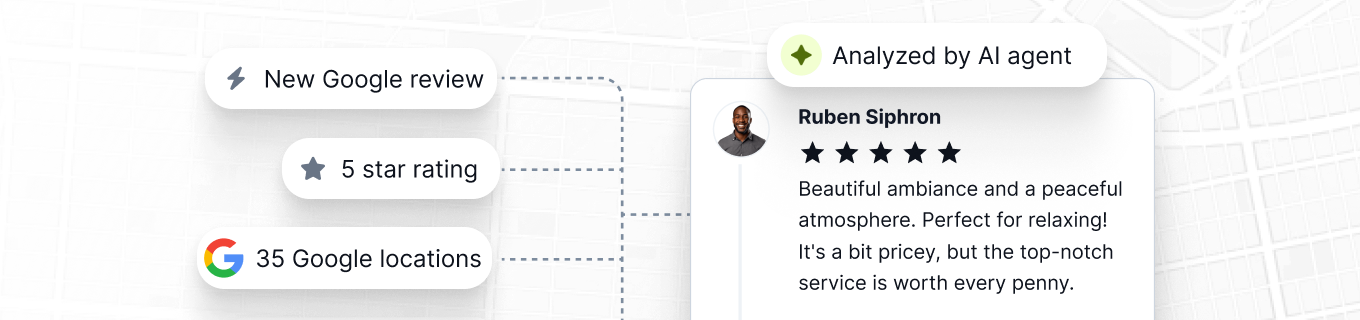
Then ask Claude to map each action back to Localith:
For each location in the action plan, tell me which Localith area I should check next: listings management, review replies, analytics, publishing, or AI SEO Agent.
Expected output:
- location
- recommended Localith area to inspect
- reason
- next step
Use [listings management](/listings-management/) when Claude flags missing or inconsistent business information. Use the [AI SEO Agent](/local-seo-ai-agent/) when the issue is local visibility, optimization gaps, or next-step recommendations.
Claude should help organize the work. Localith is where your team confirms and acts.
## Step 7: Use Account-Manager Follow-Up Prompts
The best Claude prompts often sound like questions an account manager would ask before a client call.
Use these when you need quick analysis.
Which locations had strong visibility but weak customer actions?
Use this to find locations people are seeing but not acting on.
Which locations got more reviews but a lower average rating this month?
Use this to find reputation issues that may be hidden by review volume.
Which locations should I discuss first in a client meeting?
Use this before a recurring account call.
Prepare me for a client meeting about these locations. Give me the top 5 wins, top 5 risks, likely client questions, and the safest next actions to recommend. Do not claim causation unless the Localith data supports it.
Use this when you need a meeting prep brief.
Write a one-page executive summary for leadership across all locations. Focus on visibility, customer actions, review health, and the highest-priority operational fixes. Keep it plain and direct.
Use this for leadership reporting.
Before making recommendations, list the questions I should ask the client or operations team to understand why performance changed.
Use this when performance changed but the cause is not obvious.
Create a table of locations where review response rate appears weak. Include location, response issue, likely client concern, and recommended next step.
Use this for reputation workflows.
Compare the top 10 and bottom 10 locations by customer actions. Tell me what patterns are visible in the Localith data and what I should inspect manually.
Use this for location benchmarking.
Draft a short email to the client summarizing this month's GBP performance. Keep it under 200 words and include three next actions.
Use this for client communication.
## Need More From Claude? Editing, Publishing, and Custom Tools
Today, the Localith Claude MCP connector is read-only. Through the default connector Claude can analyze, summarize, and plan, but it cannot change anything on your Google Business Profiles.
Through this connector Claude cannot:
- edit listing names, addresses, phone numbers, categories, or hours
- reply to Google reviews
- publish Google Posts
- upload photos
- change profile settings
- approve profile changes
- know the cause of a metric change unless the data supports it
For teams that want Claude to do more than read, the path is the [Localith Google Business Profile API](/api/). With API access you can build your own tools inside Claude, or any AI environment that supports custom tools and MCP, for editing business info, bulk updates, publishing Google Posts, submitting review replies, and any other workflow your team needs. Start with the [API access doc](/docs/integrations/api-access/) for authentication and the endpoint reference, and the [GBP API guide](/blog/google-business-profile-api-guide/) for agency workflows.
Want a specific workflow added to the default Localith connector? Tell us. [Contact support](/contact/) and we will route the request to the connector roadmap.
When Claude flags an issue in the read-only flow, go back to Localith to inspect and act. Use the Performance Dashboard for metrics, report exports for shareable files, Listings Management for profile data, review workflows for replies, and AI SEO Agent for optimization guidance.
## What About ChatGPT?
You can adapt the same prompt logic for ChatGPT if your plan and workspace support custom MCP connectors or developer mode.
OpenAI's [developer mode documentation](https://platform.openai.com/docs/developer-mode) says ChatGPT can work with custom MCP connectors in supported plans and workspaces. OpenAI's [connector help](https://help.openai.com/en/articles/11487775-connectors-in-chatgpt) also notes that MCP connector access can depend on plan, developer mode, admin permissions, and whether the connector meets technical requirements.
So keep this section simple:
- The prompts can be adapted for ChatGPT.
- The setup is not the same as Claude.
- ChatGPT MCP access may require developer mode or workspace admin approval.
- Use the Localith [Google Business Profile API tool](/api/) page for broader API and connector workflows.
Do not promise that every reader can add Localith to ChatGPT today. Check connector support in your current plan first.
## Start With One Safe Prompt
The easiest way to start is not a full report. Start by asking Claude to list the locations it can access through Localith.
If that works, move to a performance summary. Then a report. Then review risks. Then a 30-day action plan.
That sequence keeps the workflow controlled: you trust each answer before asking for a bigger one.
When you are ready, connect the [Claude MCP connector](/docs/integrations/claude-mcp-setup/) and use Localith as the source for multi-location GBP reporting. If you are still setting up your Localith account, review [Localith pricing](/pricing/) and start with the location set you want to analyze first.